
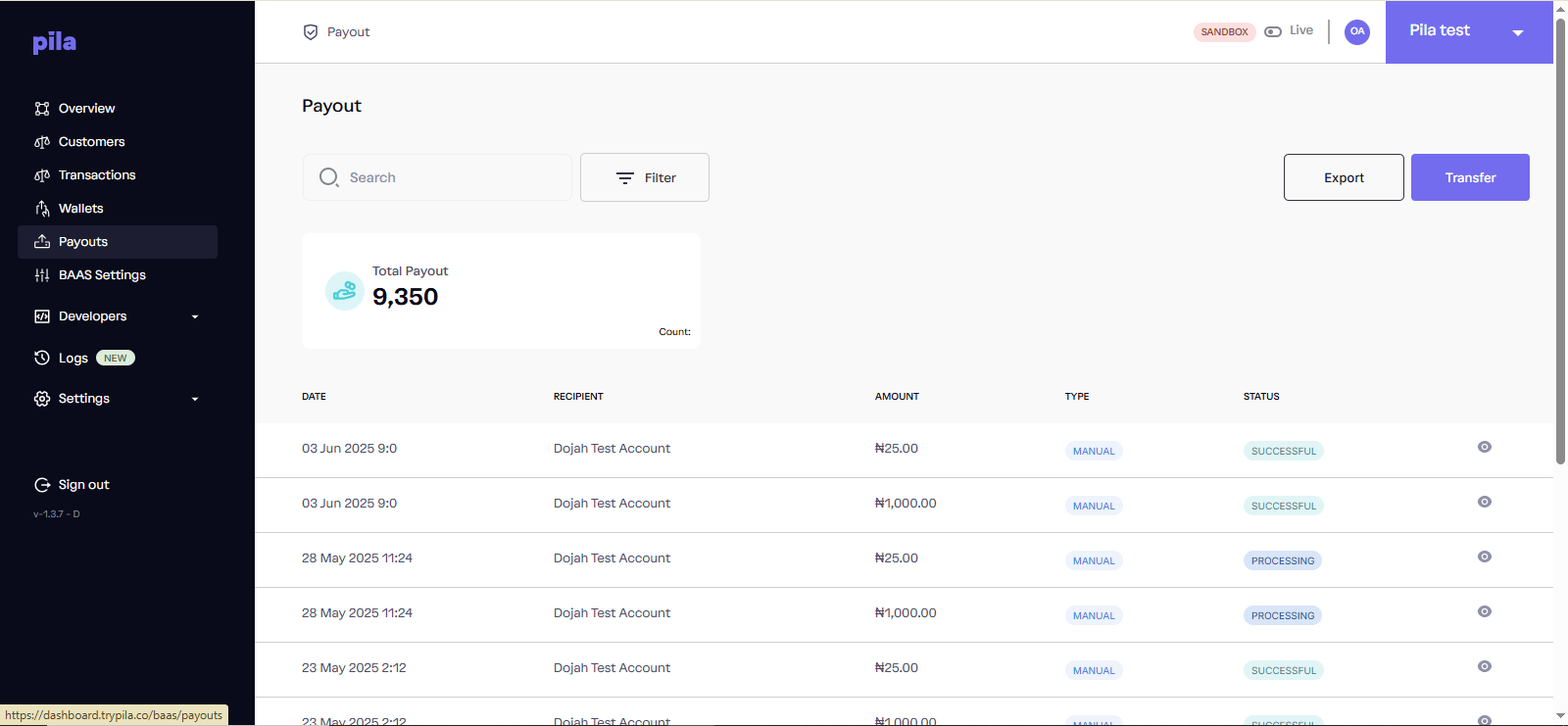
The Payout page
MANUAL means it was sent from the dashboard) and status.
Make a transfer
1
Check the mode and your balance
Confirm the top bar shows the mode you intend, and that your available balance covers the amount.
2
Select Transfer
At the top right of the Payout page.
3
Enter the recipient and amount
The recipient’s bank account, then the amount.
4
Confirm with your payment PIN
The payout then appears at the top of the list. Set a PIN first under Business settings if you have not.
Filter payouts
Select Filter, choose a range under By Date, then select Filter. Select Reset all to clear.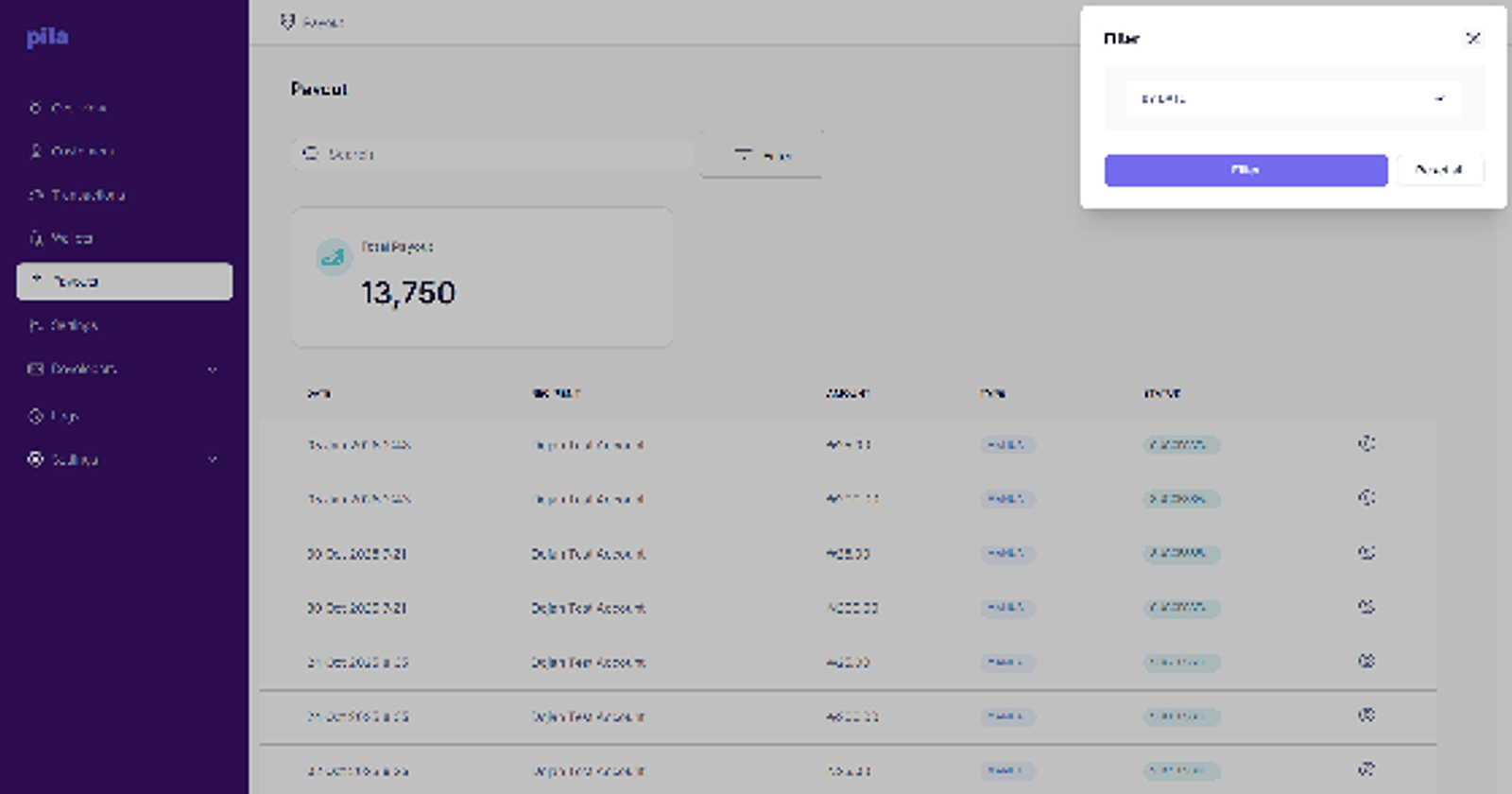
The payouts filter panel
View a payout and download a receipt
1
Open the payout
Select the eye icon at the end of the row.
2
Check the details
Account Details shows the account name, bank and account number paid. Transaction Details shows time, amount, currency, type and status.
3
Download the receipt
Select Download Receipt to save proof of payment for the recipient.
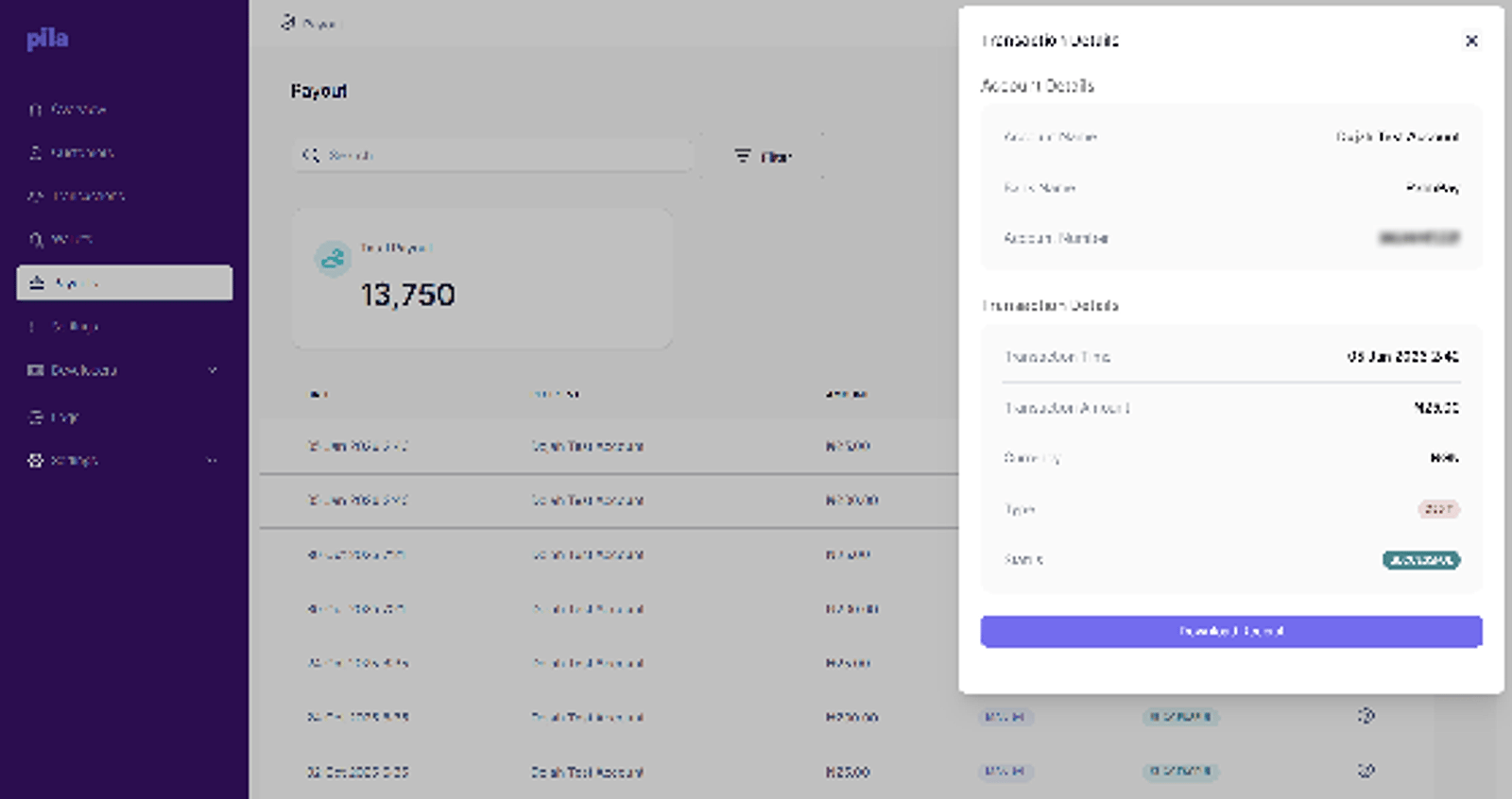
Payout details, with the receipt download