
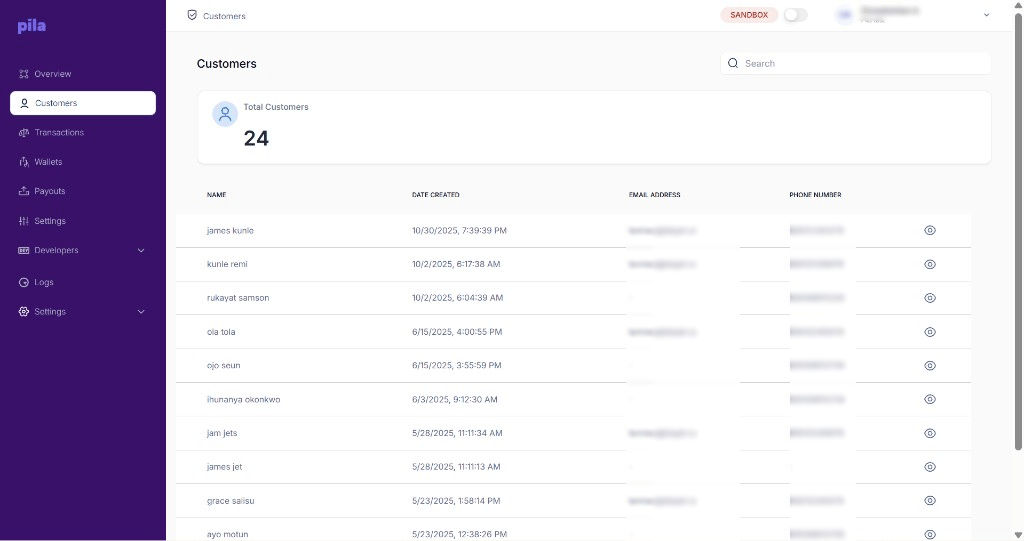
The Customers page
1
Search
Type a name, email or phone number into Search at the top right.
2
Open the profile
Select the eye icon at the end of the row.
Customer profile
The profile header shows the customer’s name, email and phone number. Three tabs sit below it. Select Back to return to the list.Transactions tab
This customer’s transactions, with Total Collections, Total Payout and Estimated Settlements cards. Use Search and Filter to narrow the list. A customer with no activity shows “No Transaction History Found”.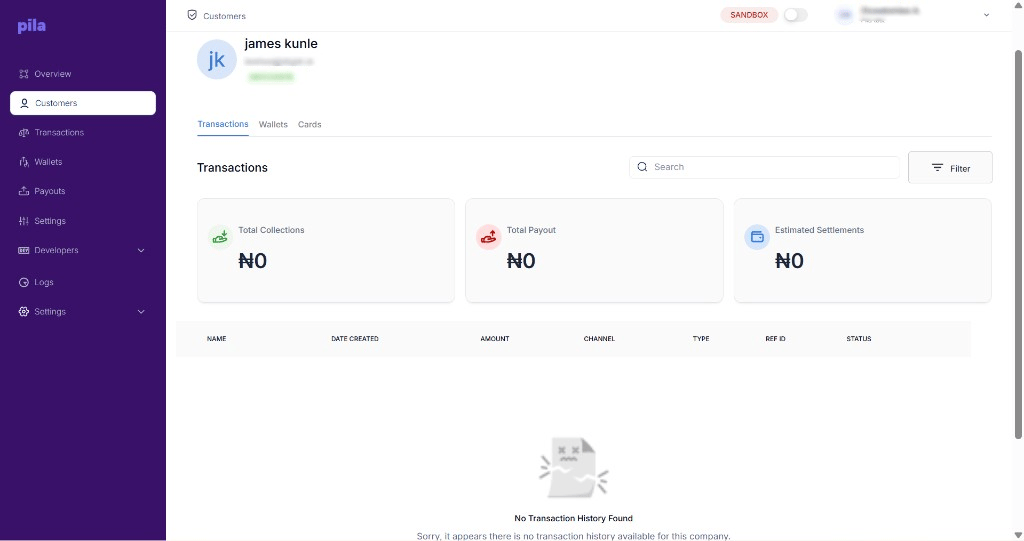
A customer's transactions
Wallets tab
Every wallet (virtual account) issued to this customer, with bank name, account number, date created and current balance. Select the copy icon to copy an account number, or the eye icon to open the wallet.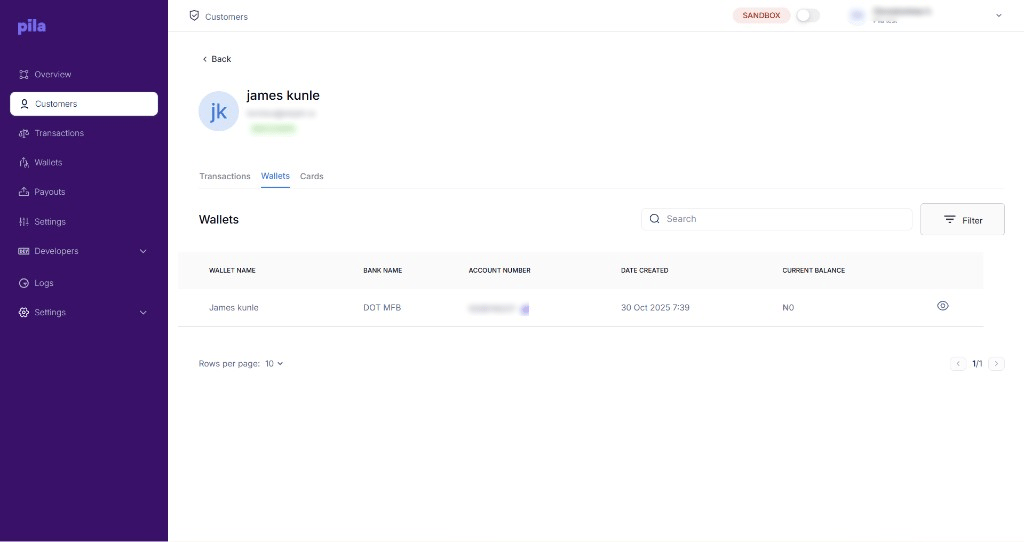
A customer's wallets
Cards tab
The cards issued to this customer. Each row shows the card name, masked card number (last four digits only), card type, status and date created.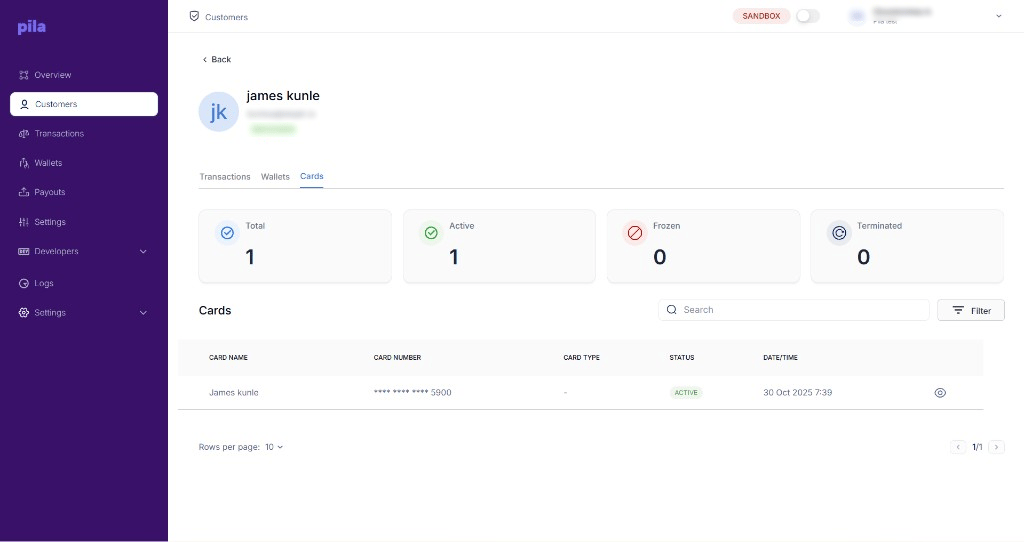
A customer's cards