> ## Documentation Index
> Fetch the complete documentation index at: https://api-docs.trypila.co/llms.txt
> Use this file to discover all available pages before exploring further.
# Wallets
> Every virtual account Pila has issued to your customers, with its account number and current balance.
A wallet is a virtual bank account Pila issues to one of your customers. The Wallets page lists every wallet across your business, with its account number and current balance.
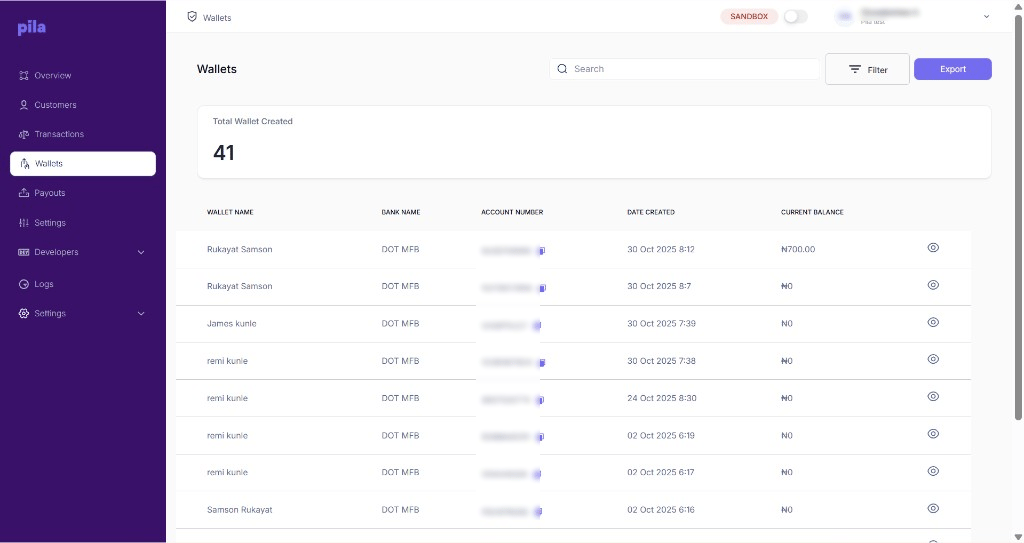 The **Total Wallet Created** card counts the wallets in the current mode. A customer can have more than one wallet.
| Column | Meaning |
| - | - |
| **Wallet name** | The name on the account, usually the customer's name. |
| **Bank name** | The partner bank that holds the account, for example DOT MFB. |
| **Account number** | The number customers pay into. Select the copy icon to copy it. |
| **Date created** | When the wallet was issued. |
| **Current balance** | The balance in the wallet now. |
## Find and export
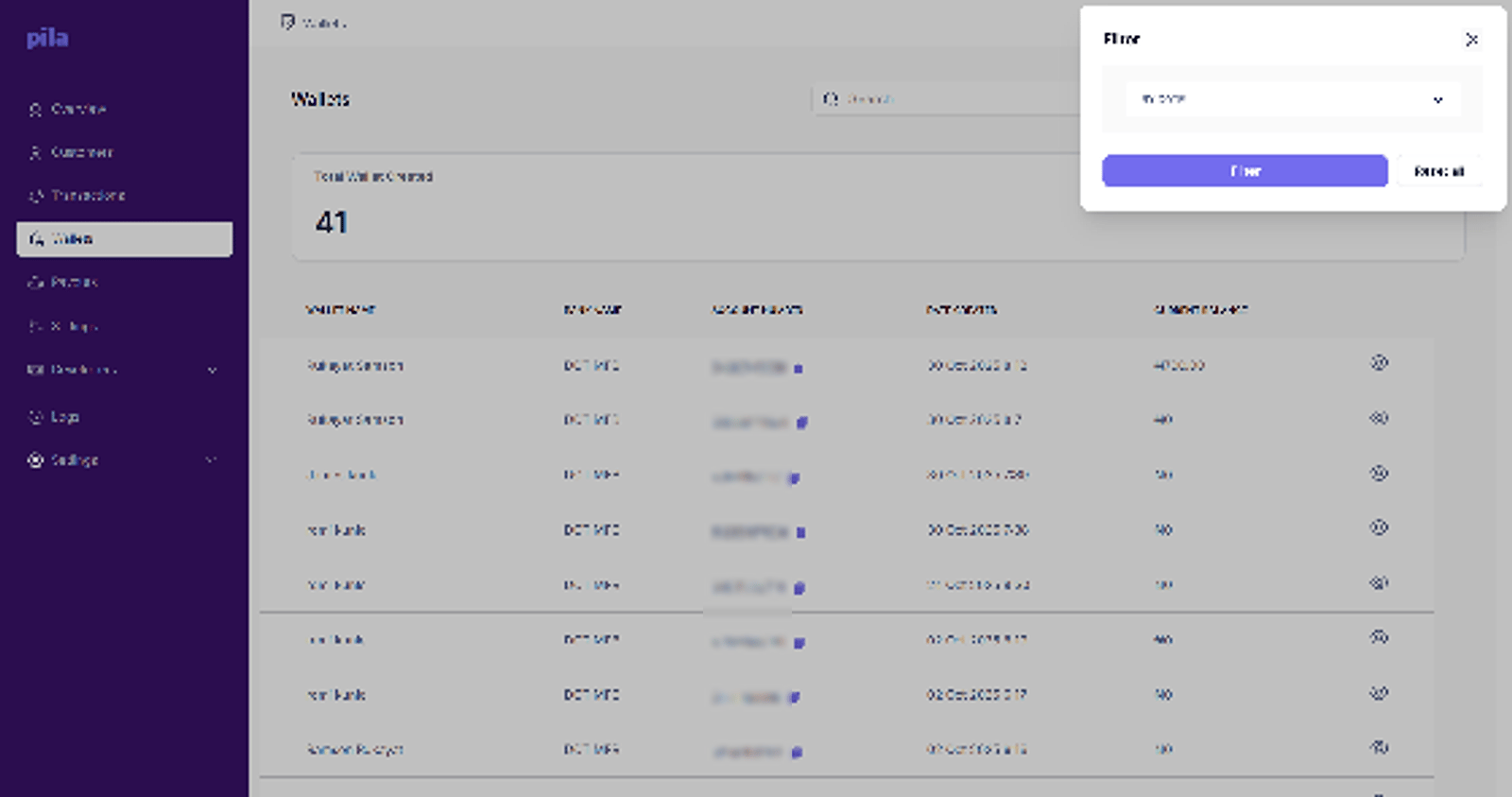
Use **Search** to find a wallet by name or account number. Select **Filter**, choose a range under **By Date**, then select **Filter**. Select **Export** to download the list.
The **Total Wallet Created** card counts the wallets in the current mode. A customer can have more than one wallet.
| Column | Meaning |
| - | - |
| **Wallet name** | The name on the account, usually the customer's name. |
| **Bank name** | The partner bank that holds the account, for example DOT MFB. |
| **Account number** | The number customers pay into. Select the copy icon to copy it. |
| **Date created** | When the wallet was issued. |
| **Current balance** | The balance in the wallet now. |
## Find and export
Use **Search** to find a wallet by name or account number. Select **Filter**, choose a range under **By Date**, then select **Filter**. Select **Export** to download the list.
 ## Wallet details
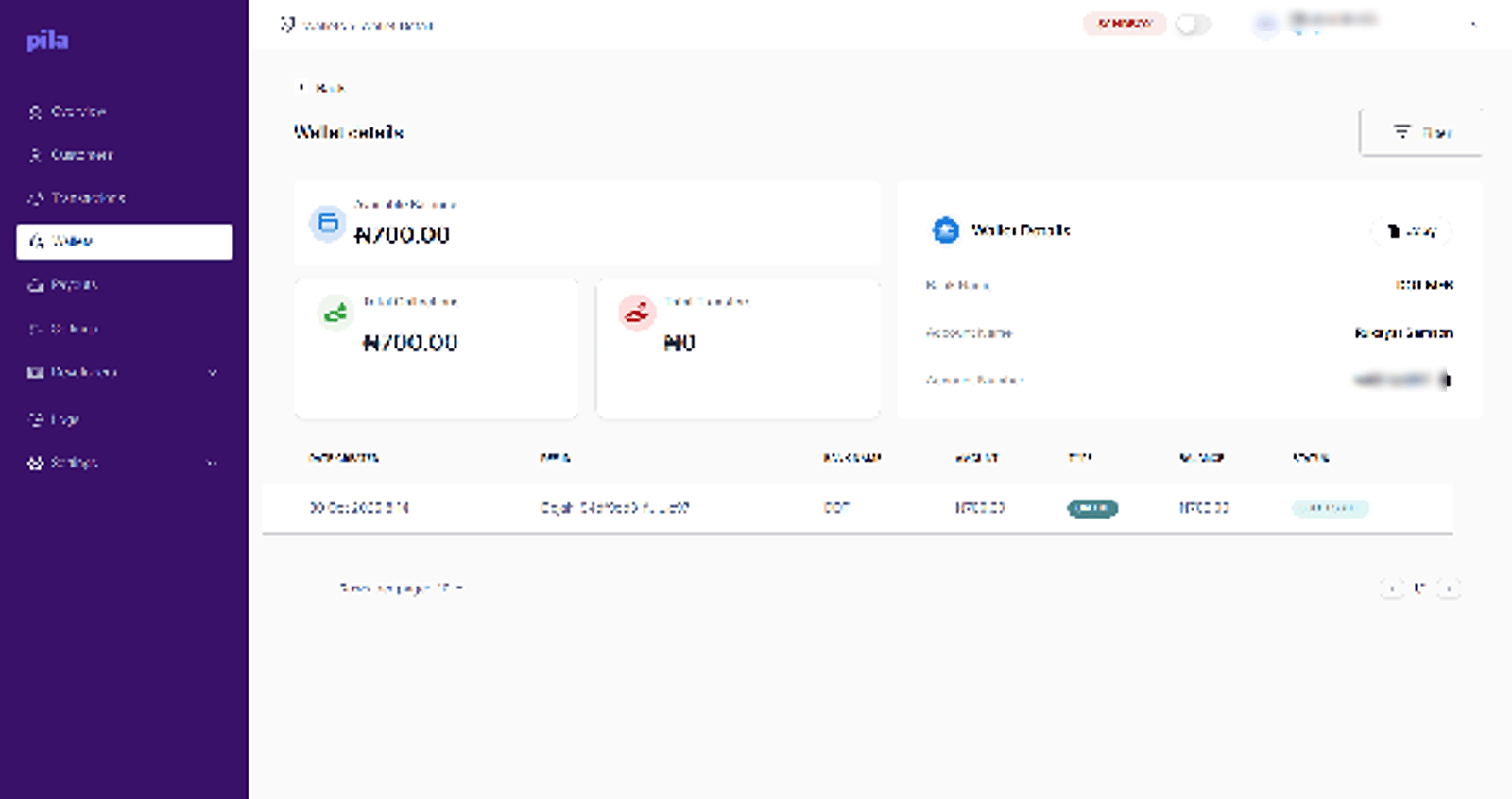
Select the eye icon on a wallet to open it.
| Figure | Meaning |
| - | - |
| **Available Balance** | What is in the wallet now. |
| **Total Collections** | All money received into the wallet. |
| **Total Transfers** | All money sent out of the wallet. |
| **Wallet Details** | Bank name, account name and account number. Select **Copy** to copy all three. |
Below is the wallet's transaction history: date, reference, bank, amount, type, the running **balance** after each entry, and status. Select **Back** to return to the list.
## Wallet details
Select the eye icon on a wallet to open it.
| Figure | Meaning |
| - | - |
| **Available Balance** | What is in the wallet now. |
| **Total Collections** | All money received into the wallet. |
| **Total Transfers** | All money sent out of the wallet. |
| **Wallet Details** | Bank name, account name and account number. Select **Copy** to copy all three. |
Below is the wallet's transaction history: date, reference, bank, amount, type, the running **balance** after each entry, and status. Select **Back** to return to the list.
 When a customer says money is missing, check the wallet balance here first, then find the specific movement in [Transactions](/dashboard-guide/home/transactions). Most reports resolve to a transfer that is still processing.
## Doing this from the API
| Task | Endpoint |
| - | - |
| Create a wallet | [Create a wallet](/api-reference/wallets/create-wallet) |
| Read a wallet's balance and details | [Wallet details](/api-reference/wallets/wallet-details) |
| Credit a wallet | [Credit wallet](/api-reference/wallets/credit-wallet) |
| Debit a wallet | [Debit wallet](/api-reference/wallets/debit-wallet) |
This documentation is built and hosted on [Mintlify](https://mintlify.com), a developer documentation platform.
When a customer says money is missing, check the wallet balance here first, then find the specific movement in [Transactions](/dashboard-guide/home/transactions). Most reports resolve to a transfer that is still processing.
## Doing this from the API
| Task | Endpoint |
| - | - |
| Create a wallet | [Create a wallet](/api-reference/wallets/create-wallet) |
| Read a wallet's balance and details | [Wallet details](/api-reference/wallets/wallet-details) |
| Credit a wallet | [Credit wallet](/api-reference/wallets/credit-wallet) |
| Debit a wallet | [Debit wallet](/api-reference/wallets/debit-wallet) |
This documentation is built and hosted on [Mintlify](https://mintlify.com), a developer documentation platform.