> ## Documentation Index
> Fetch the complete documentation index at: https://api-docs.trypila.co/llms.txt
> Use this file to discover all available pages before exploring further.
# Business settings
> How money leaves your account — your payment PIN, where fees are charged, where settlements go, credit alerts and your support email.
The **Settings** item near the top of the sidebar controls how money leaves your account: your payment PIN, where fees are charged, where settlements go, credit alerts and your support email.
 ## Change your payment PIN
Your payment PIN authorises money leaving your account.
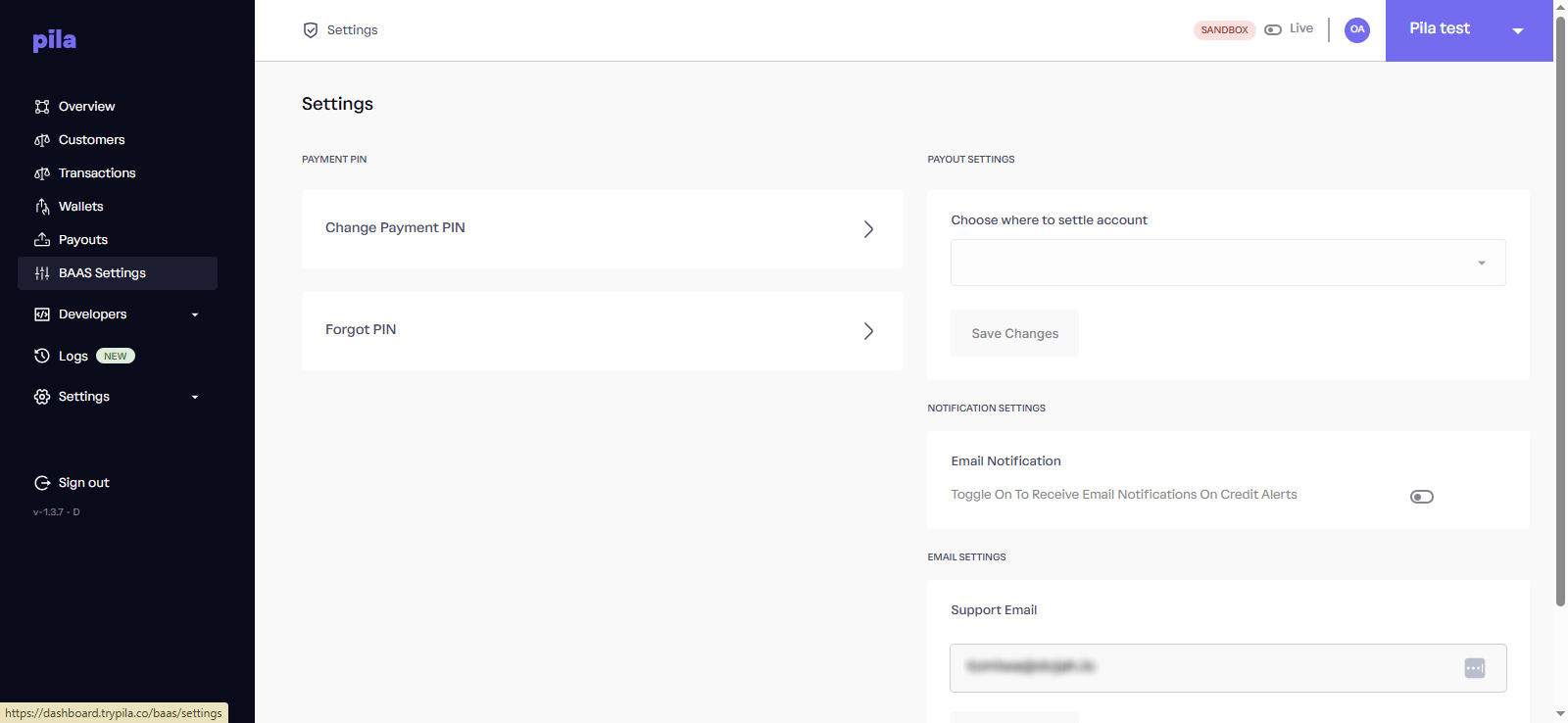
Under **Payment PIN**, select **Change Payment PIN**.
In the **Current PIN** field.
In **New PIN** and again in **Confirm New PIN**.
Select **Confirm PIN Change**. The button becomes active once all three fields are filled.
## Change your payment PIN
Your payment PIN authorises money leaving your account.
Under **Payment PIN**, select **Change Payment PIN**.
In the **Current PIN** field.
In **New PIN** and again in **Confirm New PIN**.
Select **Confirm PIN Change**. The button becomes active once all three fields are filled.
 ### Forgot your PIN
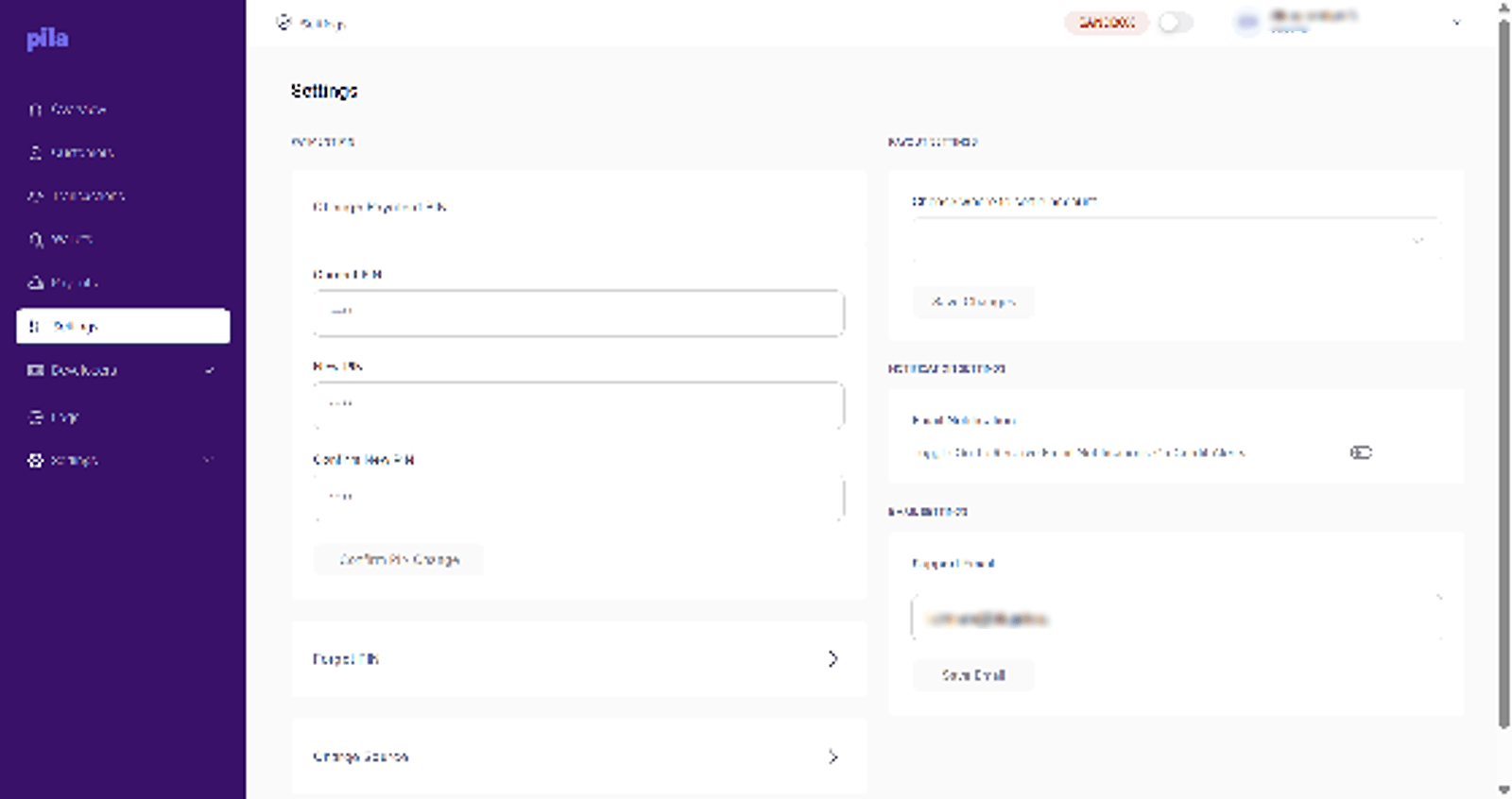
Select **Forgot PIN**.
Select **Reset PIN** and follow the prompts to set a new one.
### Forgot your PIN
Select **Forgot PIN**.
Select **Reset PIN** and follow the prompts to set a new one.
 **Keep your PIN private.** Anyone with your dashboard login and payment PIN can send money from your account. Change it whenever someone with access leaves your team.
## Charge source
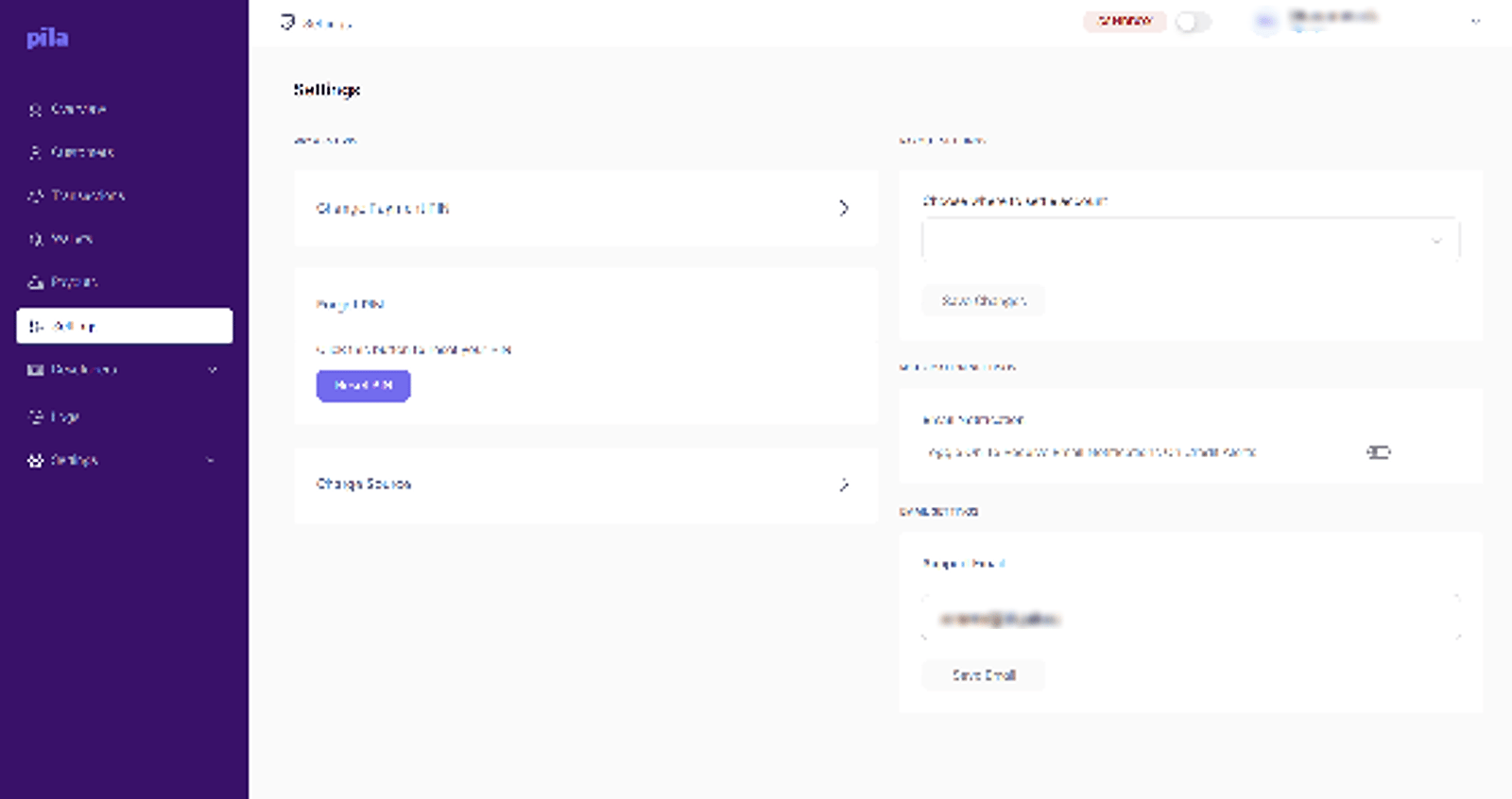
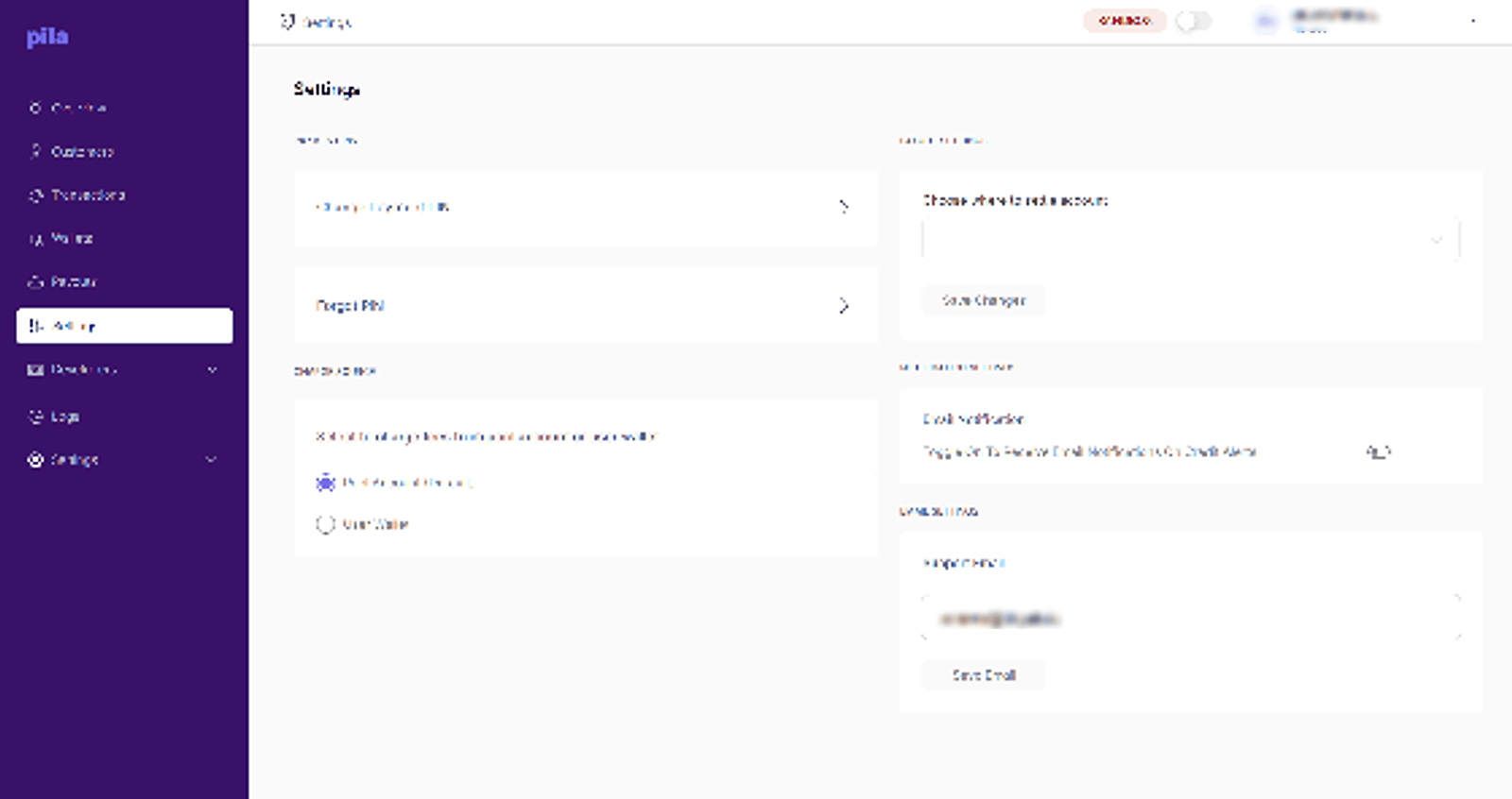
Charge source decides where Pila takes its fees from. Select **Charge Source** and choose an option.
| Option | What happens |
| - | - |
| **Pool Account (Default)** | Fees come from your business's main account. Customers' wallet balances are not reduced by fees. |
| **User Wallet** | Fees come from the wallet of the customer the transaction belongs to. |
**Keep your PIN private.** Anyone with your dashboard login and payment PIN can send money from your account. Change it whenever someone with access leaves your team.
## Charge source
Charge source decides where Pila takes its fees from. Select **Charge Source** and choose an option.
| Option | What happens |
| - | - |
| **Pool Account (Default)** | Fees come from your business's main account. Customers' wallet balances are not reduced by fees. |
| **User Wallet** | Fees come from the wallet of the customer the transaction belongs to. |
 If you switch to User Wallet, fees will reduce your customers' balances. Tell them before you change it.
## Settlement account
Under **Payout Settings**, open **Choose where to settle account**.
Choose the account you want settlements paid into.
Select **Save Changes**.
If settlement is unset, collections accumulate in your Pila balance instead of sweeping to your bank. That is fine if you are funding payouts from the same pool — just make it a deliberate choice.
## Credit alerts
Under **Notification Settings**, turn on **Email Notification** to get an email each time money is credited. Turn it off to stop them.
To choose which team members get balance alerts, see [Email notifications](/dashboard-guide/account/email-notifications).
Useful while you are getting started and want confirmation that collections are landing. Once you are processing volume, switch to [webhooks](/api-reference/webhooks/subscribe) and turn this off — otherwise it becomes noise nobody reads.
## Support email
Under **Email Settings**, enter the address your team monitors in **Support Email**, then select **Save Email**. Use a shared inbox, not a personal address.
## Checklist before going live
Manual transfers will not go through without one.
Decide whether fees come from your pool account or from customer wallets.
Decide whether collections sweep to your bank or stay in your Pila balance.
A shared inbox your team actually watches.
Configured separately from sandbox. See [Webhooks](/dashboard-guide/developers/webhooks).
This documentation is built and hosted on [Mintlify](https://mintlify.com), a developer documentation platform.
If you switch to User Wallet, fees will reduce your customers' balances. Tell them before you change it.
## Settlement account
Under **Payout Settings**, open **Choose where to settle account**.
Choose the account you want settlements paid into.
Select **Save Changes**.
If settlement is unset, collections accumulate in your Pila balance instead of sweeping to your bank. That is fine if you are funding payouts from the same pool — just make it a deliberate choice.
## Credit alerts
Under **Notification Settings**, turn on **Email Notification** to get an email each time money is credited. Turn it off to stop them.
To choose which team members get balance alerts, see [Email notifications](/dashboard-guide/account/email-notifications).
Useful while you are getting started and want confirmation that collections are landing. Once you are processing volume, switch to [webhooks](/api-reference/webhooks/subscribe) and turn this off — otherwise it becomes noise nobody reads.
## Support email
Under **Email Settings**, enter the address your team monitors in **Support Email**, then select **Save Email**. Use a shared inbox, not a personal address.
## Checklist before going live
Manual transfers will not go through without one.
Decide whether fees come from your pool account or from customer wallets.
Decide whether collections sweep to your bank or stay in your Pila balance.
A shared inbox your team actually watches.
Configured separately from sandbox. See [Webhooks](/dashboard-guide/developers/webhooks).
This documentation is built and hosted on [Mintlify](https://mintlify.com), a developer documentation platform.