> ## Documentation Index
> Fetch the complete documentation index at: https://api-docs.trypila.co/llms.txt
> Use this file to discover all available pages before exploring further.
# Overview
> Your home screen — how much you have available, your business account details, and how money has moved in and out.
The Overview page is your home screen. It shows how much you have available, your business account details, and how money has moved in and out month by month.
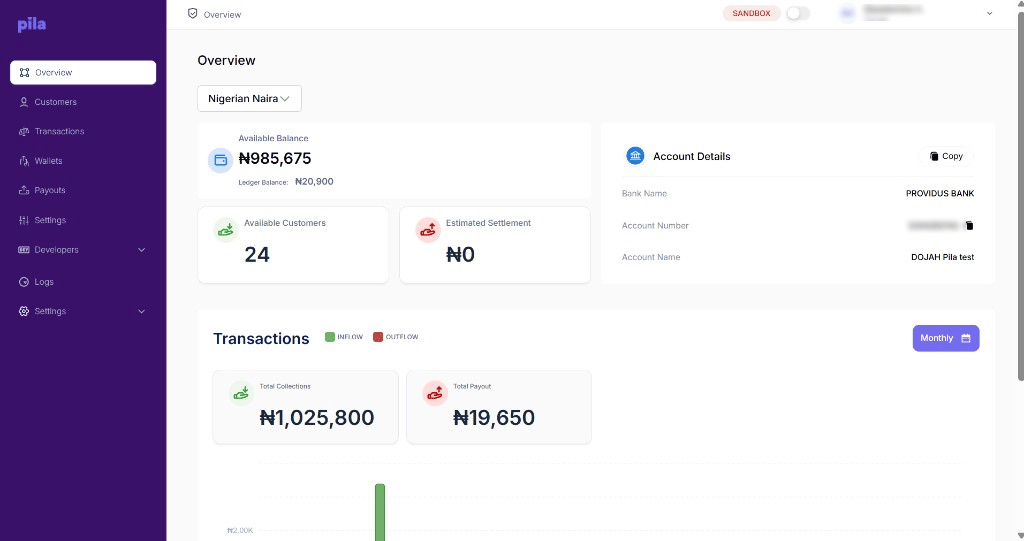 Use the currency selector under the page title — for example **Nigerian Naira** — to choose which currency the figures are shown in.
| Figure | Meaning |
| - | - |
| **Available Balance** | The money you can use right now for transfers and payouts. |
| **Ledger Balance** | The balance recorded on your account. It can differ from the available balance while transactions are still processing. |
| **Available Customers** | The number of customers onboarded in the current mode. |
| **Estimated Settlement** | The amount expected to settle to your chosen settlement account. |
## Account details
The **Account Details** card shows the bank name, account number and account name of your business account on Pila. Use it to fund your balance.
Select the copy icon next to the account number.
Select **Copy** at the top of the card to take the bank name, account number and account name together.
See [Fund your wallet](/dashboard-guide/getting-started/fund-your-wallet) for what happens next.
## Transactions chart
Scroll down for a chart of your transaction history. Green bars are **inflow** (money in) and red bars are **outflow** (money out). The **Total Collections** and **Total Payout** cards above the chart give the totals. Use the **Monthly** button to change how the chart groups time.
Use the currency selector under the page title — for example **Nigerian Naira** — to choose which currency the figures are shown in.
| Figure | Meaning |
| - | - |
| **Available Balance** | The money you can use right now for transfers and payouts. |
| **Ledger Balance** | The balance recorded on your account. It can differ from the available balance while transactions are still processing. |
| **Available Customers** | The number of customers onboarded in the current mode. |
| **Estimated Settlement** | The amount expected to settle to your chosen settlement account. |
## Account details
The **Account Details** card shows the bank name, account number and account name of your business account on Pila. Use it to fund your balance.
Select the copy icon next to the account number.
Select **Copy** at the top of the card to take the bank name, account number and account name together.
See [Fund your wallet](/dashboard-guide/getting-started/fund-your-wallet) for what happens next.
## Transactions chart
Scroll down for a chart of your transaction history. Green bars are **inflow** (money in) and red bars are **outflow** (money out). The **Total Collections** and **Total Payout** cards above the chart give the totals. Use the **Monthly** button to change how the chart groups time.
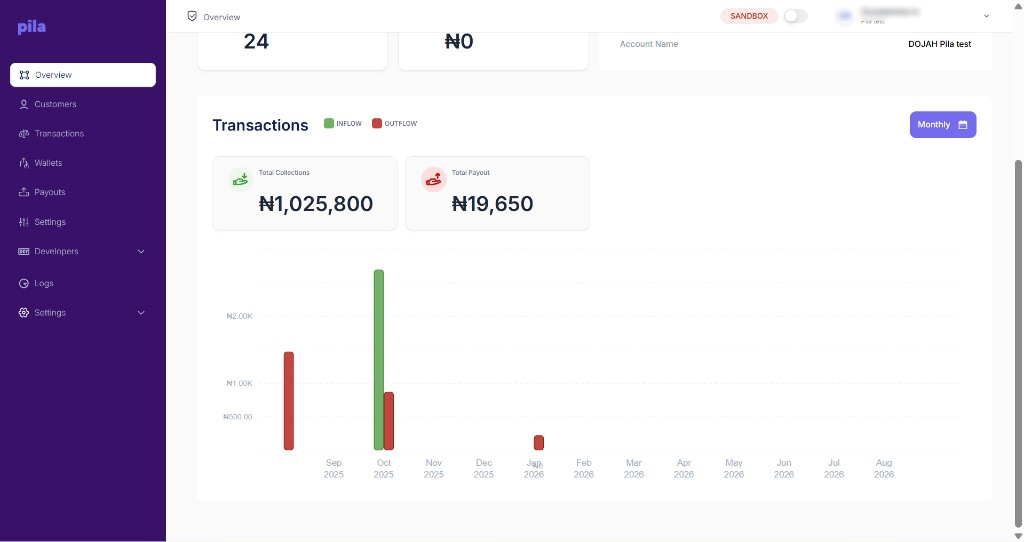 Collections consistently outrunning payouts, with a flat balance, usually means settlement is sweeping to your bank rather than accumulating. Check [Business settings](/dashboard-guide/home/settings#settlement-account).
## Next
Find a customer and open their wallets and cards.
The full record of money moving through your business.
This documentation is built and hosted on [Mintlify](https://mintlify.com), a developer documentation platform.
Collections consistently outrunning payouts, with a flat balance, usually means settlement is sweeping to your bank rather than accumulating. Check [Business settings](/dashboard-guide/home/settings#settlement-account).
## Next
Find a customer and open their wallets and cards.
The full record of money moving through your business.
This documentation is built and hosted on [Mintlify](https://mintlify.com), a developer documentation platform.