> ## Documentation Index
> Fetch the complete documentation index at: https://api-docs.trypila.co/llms.txt
> Use this file to discover all available pages before exploring further.
# Profile and security
> Your personal details, your password and two-factor authentication.
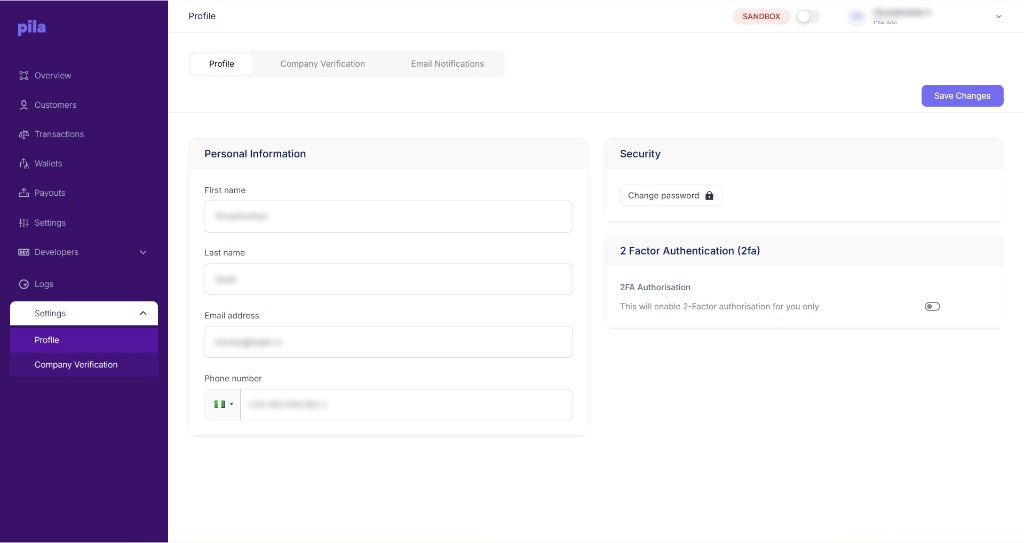
The **Settings** menu at the bottom of the sidebar holds your personal profile and security, your company's verification for going live, and who receives email alerts. Expand it and pick **Profile** or **Company Verification**; the page has three tabs across the top.
 ## Personal information
Under **Personal Information**, update your first name, last name, email address or phone number.
Select **Save Changes** at the top right.
## Security
Under **Security**, select **Change password** to set a new password.
## Two-factor authentication
Under **2 Factor Authentication (2fa)**, turn on **2FA Authorisation** to require a second step when you sign in.
2FA applies to your own login only. Each team member turns it on for themselves.
Turn on 2FA on every account that can move money. A dashboard login plus a payment PIN is enough to send a payout, so a stolen password is a direct financial risk.
If you see a login you do not recognise in [Audit logs](/dashboard-guide/logs#audit-logs), change your password here and turn on 2FA straight away.
## Next
The two steps that unlock live access.
Choose who receives balance alerts.
This documentation is built and hosted on [Mintlify](https://mintlify.com), a developer documentation platform.
## Personal information
Under **Personal Information**, update your first name, last name, email address or phone number.
Select **Save Changes** at the top right.
## Security
Under **Security**, select **Change password** to set a new password.
## Two-factor authentication
Under **2 Factor Authentication (2fa)**, turn on **2FA Authorisation** to require a second step when you sign in.
2FA applies to your own login only. Each team member turns it on for themselves.
Turn on 2FA on every account that can move money. A dashboard login plus a payment PIN is enough to send a payout, so a stolen password is a direct financial risk.
If you see a login you do not recognise in [Audit logs](/dashboard-guide/logs#audit-logs), change your password here and turn on 2FA straight away.
## Next
The two steps that unlock live access.
Choose who receives balance alerts.
This documentation is built and hosted on [Mintlify](https://mintlify.com), a developer documentation platform.